
 +1-480-241-8198
 +44-7428758945
 +61-1300-332-888
 +91 9811400594
Your HubSpot data is not messy because your team is negligent. It is messy because HubSpot revolves around four key components: people (contacts), businesses (companies), sales (deals), and support requests (tickets).
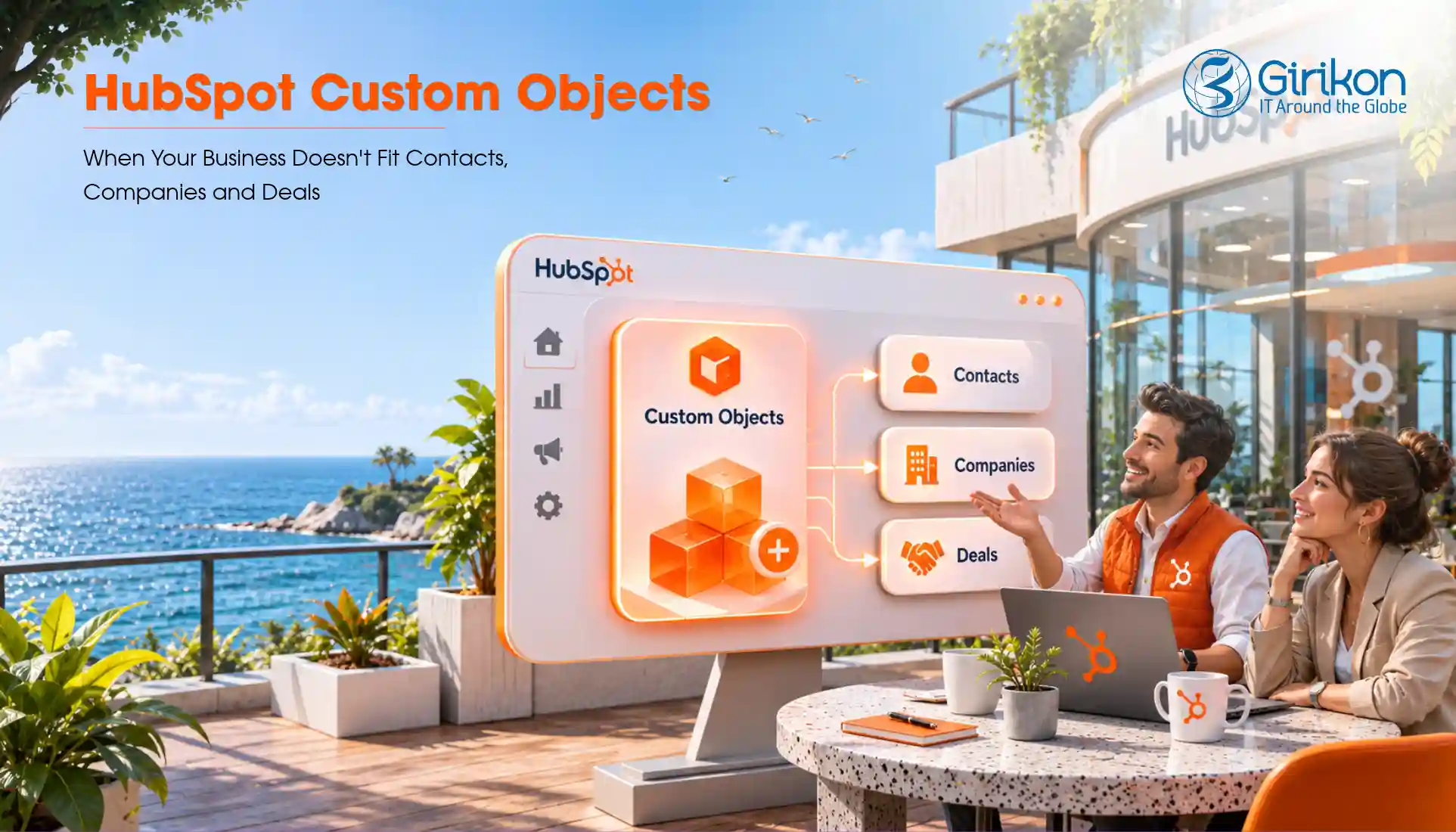
But how about when you need to track another aspect, such as subscriptions or bookings? Well, none of these four applies. And teams tend to store all these details in deals. Reports are difficult to understand, and the information is not completely trusted.
This is the issue HubSpot custom objects aim to solve. A custom object means creating a whole new type of information, such as “Subscriptions”, along with all the information about it and linking it to relevant contacts and companies. It is only available on Enterprise plans, and not every single piece of messy information deserves a custom object.
But how can you say that it is actually yours?
What Are HubSpot Custom Objects?
HubSpot custom objects represent categories of information you build yourselves that do not fall under the category of contacts, companies, deals, and tickets.
Imagine an object as a database within your company’s CRM. Give it a name like “Subscriptions” and select what kind of information you would like to save. Every object record is similar to contact or company records. After this, you link the record to the relevant contacts and companies, and nothing remains alone.
Like other existing objects, custom objects can be used in workflows and reports. This is where the complexity comes in. Adding a custom object is not simply building another repository but reconfiguring the way your HubSpot data model works.
When You Should Use Custom Objects in HubSpot
Understand that not every new piece of information needs its own object; there can be situations where all you need is a field. In all, the difference is what you are actually trying to store.
HubSpot custom objects make sense when:
- One contact or company can have many of the same items, such as several subscriptions or locations.
- The item moves through its own stages and needs its own pipeline.
- You need to report it directly, not through deal fields.
HubSpot’s documentation gives a clear example. Each car needs its own record, because of different prices or availability. That’s where a custom Cars object comes in.
However, one must check for existing functionality first. There are tools that work only with some particular objects. For example, bulk marketing emails are possible to send only to contacts. Custom objects cannot be used instead of activities, such as notes.
Custom Objects vs. Properties: How to Choose
A good HubSpot data model design begins with a fundamental question you need to ask yourself: whether the data belongs to a record or is something else that relates to the record in some way. In other words, consider a property as a field in an existing object and a custom object as a new record.
| Custom property | Custom object | |
|---|---|---|
| Data per record | One value | Many items, each with its own details |
| Stages | Follows the parent record | Can have its own pipeline |
| Reporting | Through the parent object | On the object itself |
| Plan | Limits vary by plan | Enterprise required |
Scroll sideways to compare
The recommendations of HubSpot are no different. Before making an object, check whether you could use some already existing object and its attributes for the same purpose, and whether your new object may bring about overlap or inconsistency of data.
Criteria are rather simple – one renewal date per customer is a property; several subscriptions per customer, each with its own date of subscription and status – custom objects.
Even when you need to make an object, you cannot do that without restrictions. And that raises another question – what is the limit on their quantity?
The New HubSpot Custom Object Limits You Must Know
HubSpot custom objects have limits, so ensure you review those limits before you build. These limits include the number of custom objects you can have, records per object, properties, pipelines, association labels, and records that can be associated with another record.
These limits depend on your subscription and pricing model, so don’t rely on figures from older articles. You can check your account’s current allowances under Data Management → Data Model → Limits.
Don’t overlook the connections: A CRM isn’t just about storing records; it’s also about how those records relate to one another. Imagine one customer has thousands of IoT devices connected to their account. Can your CRM handle all those connections? That’s something worth checking before you build.
HubSpot Data Model Design: 5 Rules to Remember Before Creation
Just some foresight might allow you to avoid a complete overhaul of the CRM at a later time. When creating a custom object, there are five things to keep in mind.
- Sketch the workflow process: Draw a rough map of what you are trying to track and its relationship to other data sources.
- Prototype first: Create one prototype and test it on 10-20 data entries.
- Choose its name carefully. Remember to select a clear name at the outset, as you are unable to modify the internal name of an object you create in HubSpot.
- Keep properties useful: Every field should have a job to do. If your team rarely uses it, think twice before adding it.
- Ownership should be clearly defined: Identify the owner of record creation and integration of information within other systems.
FAQs
Is using HubSpot Enterprise mandatory for custom objects?
Yes. Custom objects are featured on the HubSpot Enterprise plans only. Lower-tier plans offer existing CRM objects and uncustomized properties.
Are HubSpot custom properties and custom objects the same?
No, properties are just enhancements to an existing record, whereas a custom object will create a new record with its own details and relationships.
Is there any limitation in the custom object record when it comes to the number of contacts from HubSpot?
No, as there is no integration between records and contact accounts and records have their own quota based on your subscription plan.
Create your HubSpot CRM according to your business needs
Contacts, companies, deals, and tickets – they cover many things; however, they may be too generic for some business processes. That’s where custom objects in HubSpot may be used.
However, what matters here is whether you require an extra record or simply additional properties for your HubSpot account. Not sure how to proceed? Contact our HubSpot CRM consultants.
About Author

Sakshi specializes in creating high-quality, SEO-driven content focused on Salesforce, CRM, and business automation. She writes blogs, landing pages, solution pages, case studies, and thought leadership content that simplifies complex Salesforce concepts, highlights business value, and helps organizations make informed CRM decisions.
Share this post on: