
 +1-480-241-8198
 +44-7428758945
 +61-1300-332-888
 +91 9811400594
A CRM is supposed to give sales teams a clear picture of their customer conversations. But when an important email is missing from a customer record — reps often end up digging through their inboxes or asking colleagues to forward messages just to catch up. What is supposed to be an easy follow-up process may become a tedious task that leaves the team unable to get the information needed to move a deal further.
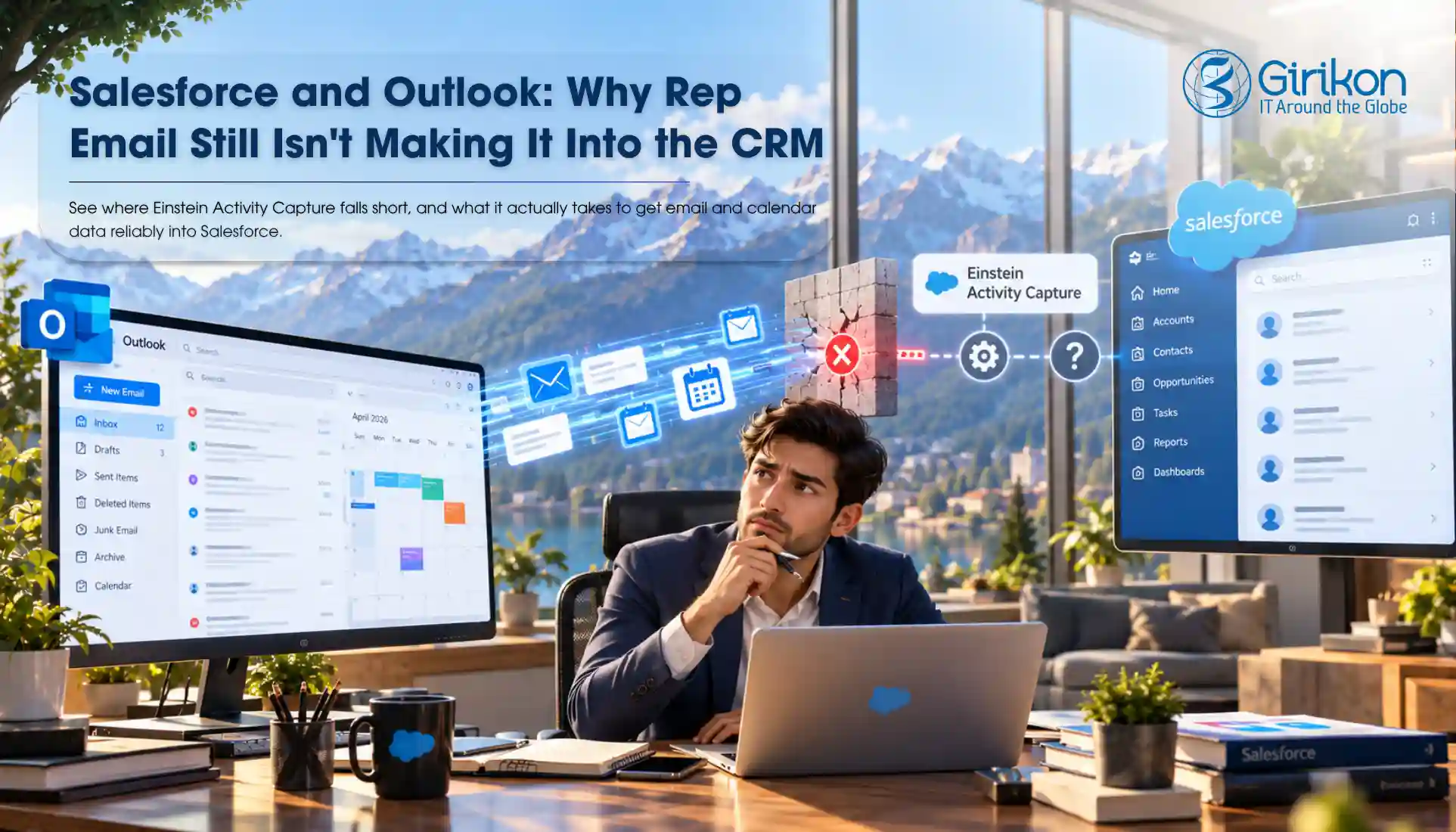
Salesforce Outlook Integration is designed to ensure that email activity remains tied to your customer accounts. However — just because you have integrated Outlook with Salesforce does not necessarily mean that all emails that matter will be in the right place. Even with Einstein Activity Capture enabled, gaps can still occur.
So — why aren’t those emails syncing, and what can businesses do to fix the problem? From common configuration issues to the limitations of native email capture, understanding what’s going wrong can help teams maintain a more complete record of customer interactions.
Let’s look at the causes and practical ways to address them in Salesforce.
How Salesforce Outlook Integration Works and What It Does
Salesforce Outlook Integration enables sales teams to look at customer details, see pertinent information, and log emails all within one program. However — connecting the two systems doesn’t guarantee that every email will appear in Salesforce. The outcome depends on the integration setup and the email logging method. For instance — Einstein Activity Capture can automatically capture emails and events, while other emails may need to be logged manually.
For businesses managing multiple applications — the right Salesforce integration services can help align these connections with their workflows and data requirements.
Understanding how these features work is the first step toward identifying why emails go missing and how to fix the problem.
Why Emails Aren’t Syncing to Salesforce
When Salesforce email sync doesn’t work as expected — the problem isn’t always the connection itself. Emails may be missing because of incorrect settings, access issues — or the way email activity is captured and linked to CRM records.
Here are a few common causes to check:
Integration settings:
Outlook may be connected — but the required settings might not be configured correctly.
User permissions:
Access or authentication issues can prevent integration from working as expected.
Email capture settings:
Automatic capture and manual email logging work differently, which affects where emails appear in Salesforce.
Record association:
The record association may be problematic, where an email can be stored, but not associated with the right lead, contact or opportunity.
Firstly, you need to determine what the problem really is. However — some gaps relate to how email capture works rather than a faulty connection. That’s why it’s important to understand what Einstein Activity Capture can and cannot do before changing the setup.
Einstein Activity Capture Limitations in Salesforce
Einstein Activity Capture can automatically capture emails and add them to related Salesforce activity timelines — reducing manual logging. However, it doesn’t guarantee that every email detail will be available where your team expects it. Its capabilities depend on the configuration and how Salesforce stores the captured data.
Here are three limitations to keep in mind:
Limited reporting capabilities:
Depending on the setup — captured emails may appear on activity timelines without being available in standard Salesforce reports. The Sync Email as Salesforce Activity setting affects how email data is stored and used.
Email attachments aren’t synced:
Einstein Activity Capture doesn’t sync email attachments to Salesforce — so users may need to access them through their connected inbox.
Salesforce Inbox serves a different purpose:
Salesforce Inbox offers additional email productivity features, while Einstein Activity Capture handles email and calendar activity. They serve related but different purposes.
These limitations also affect email logging in Salesforce. The presence of an email on an activity timeline does not imply that — its content can be accessed through reporting and that its attachment can be stored in Salesforce. This is because such knowledge is important to help a team determine the best solution.
Troubleshooting Salesforce Outlook Integration: 5 Checks to Make
If you are worried why your email isn’t syncing with Salesforce, then you must check out the connection, capture, and record association before making any changes.
- Ensure your Outlook connection is set up correctly. Ensure that your email account is connected and that it’s authenticated. An expired connection means — you need to reconnect your email account and verify it.
- Verify the integration settings. Make sure that the Outlook integration is enabled in Salesforce Setup and — the necessary users have access to all necessary functions. Just having an established connection doesn’t mean that your setup is configured perfectly.
- Inspect the Einstein Activity Capture settings. Verify that the necessary user has the proper configuration, and email capture is turned on. You should also inspect the list of excluded emails and domains.
- Check email-to-record match. In case an email was captured but not found on the right lead, contact, or opportunity, see if the email is linked to the right Salesforce record.
- Check if email logging and reporting are required. When your team needs emails to be included in reports, make sure that your Salesforce administrator enables Sync Email as Salesforce Activity option. It may vary depending on the setup — so some emails may not be logged and reported in the same way.
These troubleshooting tips cover the most common Salesforce email sync problems — without assuming that all emails are missed because of a connection problem.
Concluding Words
Salesforce Outlook Integration helps sales teams keep customer conversations connected to their CRM records — but a successful connection doesn’t guarantee complete email visibility. Missing messages may result from configuration issues, record associations, or limitations in how Einstein Activity Capture stores and displays email activity.
The best approach is to identify where the gap occurs before changing the setup. Reviewing connection settings, capture rules, and email logging requirements — help teams resolve sync issues and maintain more reliable customer activity records.
About Author

Sakshi specializes in creating high-quality, SEO-driven content focused on Salesforce, CRM, and business automation. She writes blogs, landing pages, solution pages, case studies, and thought leadership content that simplifies complex Salesforce concepts, highlights business value, and helps organizations make informed CRM decisions.
Share this post on: