
 +1-480-241-8198
 +44-7428758945
 +61-1300-332-888
 +91 9811400594
Customer cases get escalated in Salesforce, but support teams still don’t know about them until someone checks the CRM. Meanwhile, a high-value deal moves to the next stage, but the sales team is still working with outdated information.
Over the years, as businesses grow, lack of real-time visibility into Salesforce updates leads to missed follow-ups, slower decisions, and teams working in silos. The challenge isn’t a lack of data — it’s the lack of unstructured workflow to keep teams informed in real time.
This is where Slack becomes relevant. It is a central hub where teams communicate and collaborate. This makes it a perfect platform for sharing all the important business-related updates in real-time.
Now businesses want teams to see important Salesforce updates as soon as they appear. This is where Salesforce and Slack integration ensure all the important updates are reaching teams immediately.
But how do businesses actually enable real-time exchange of information? Through “Webhooks.”
Webhooks play a vital role in providing an interactive and connected environment. It provides real-time notifications in Slack. Consequently, teams instantly get updates and spend less time navigating between systems.
Salesforce
Case escalations, deal stage changes & lead assignments happen here
Webhook
Slack
Teams get real-time notifications in the right channel, instantly
How Slack and Salesforce Integration Works Using Webhooks
Slack and Salesforce integration services using webhooks work on one simple idea: any important update that comes up on Salesforce, relevant team gets instantly notified on Slack.
With manual operations, organizations just keep refreshing dashboards, looking at reports, or trusting manual updates to stay informed. This process might work for small organizations; however, it becomes inefficient as the business scales. Whereas webhooks automate communication and give real-time updates.
This is how the automated communication process works:
1
An event occurs in Salesforce: An event is automatically generated when an action occurs in the system (for example, an opportunity update, approval, a lead assignment or a case escalation).
2
Webhook is initiated: Salesforce collects relevant event details for sharing purposes.
3
Information is sent to Slack: Instead of storing the update inside Salesforce alone, the webhook pushes the notification directly to a selected Slack channel.
4
Slack receives and displays the notification: Team members instantly receive visibility without switching platforms.
5
The team acts faster: Since the update reaches the right people in real time, follow-ups and internal coordination becomes easy.
One of the biggest advantages of this approach is that notifications are sent when events take place. Teams don’t have to constantly check their Salesforce org for new updates; instead, those updates are directly sent to relevant Slack channels.
Steps to Integrate Slack in Salesforce to Stay Updated in Real-Time
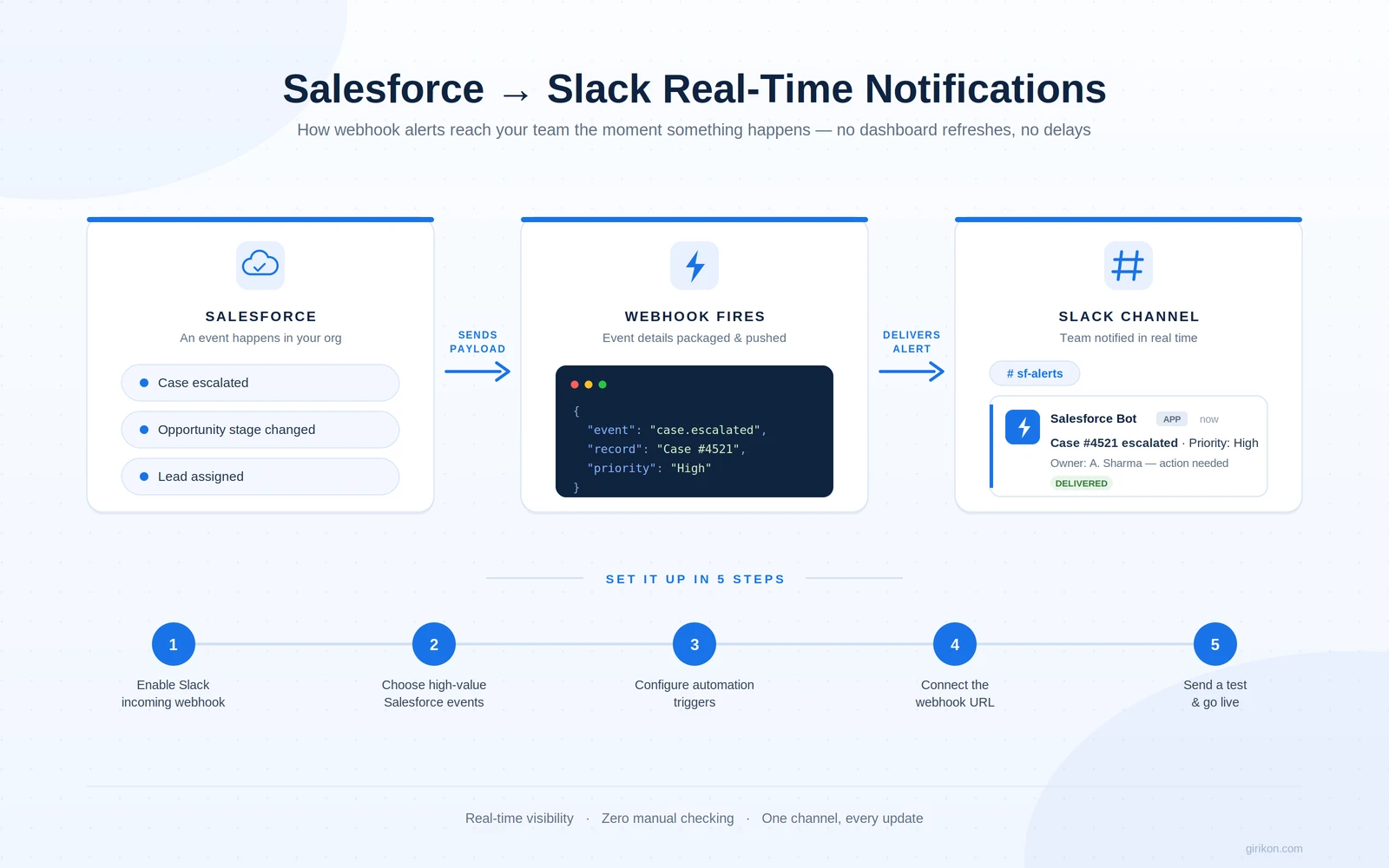
Must have steps for integrating Slack and Salesforce.
1
Configure a Slack Incoming Webhook
Set up your slack application and then enable incoming webhooks. Now choose the channel from where you want to get the notifications and generate a unique url for slack incoming webhook to send customized notifications across different channels with just one URL.
2
Identify the Salesforce Events That Require Notifications
Before configuring the connection, decide which Salesforce activities should trigger Slack alerts.
Some common examples include:
Customer case escalations Opportunity stage updates Lead assignments Approval completions Service-related alerts
Selecting only high-value events prevents unnecessary notification of overload.
3
Configure Salesforce Automation to Trigger Notifications
Set up automation within Salesforce to monitor selected events and deliver notifications. Whether you handle this with native Salesforce automation features or a custom code block (depending on your implementation strategy), your team sets the timing here.
In this step, Salesforce figures out when a notification should be delivered.
4
Connect Salesforce to Slack Through the Webhook URL
Establish the trigger logic, go to Salesforce org to configure and set the Slack webhook URL, connecting both systems. Now, if the question is “Can you connect Salesforce to Slack?” The answer is yes — with webhooks!
Salesforce will push updates to relevant Slack channels automatically using this configuration.
5
Define the Notification Content and Test the Integration
Select the details that you want to be displayed in Slack alerts, like record name, status, ownership, priority, or any Salesforce mention.
Finally, you’ll need to go and create a test event within Salesforce and see if you get the alert within the Slack channel you selected. That means that there will be no more follow-up needed or manual checking of a dashboard for your alerts.
Concluding Words
When your company grows, your sales processes and operations get complex. Your teams also need efficient communications and zero delays with your customers. To overcome such a challenge, integrating Slack and Salesforce is the ideal solution.
The configuration is simple and enables teams to customize Salesforce events that generate alerts. This ensures teams have the necessary visibility and control in one place, so they don’t waste time toggling among different applications.
With the rise of connected collaboration, there is a question that naturally arises: Is Salesforce replacing Chatter with Slack? So, to answer this, vendors consider Slack to be more of a platform where employees from multiple departments can collaborate with each other in order to obtain customer-related data rapidly, and therefore, make decisions related to customers more efficiently.
As your teamwork continues to evolve, is your business ready to give real-time updates to your customer?
FAQs
How to connect a webhook to Slack?
To enable your webhook to link with Slack, make sure to install an app into your Slack and set up “Incoming Webhooks”. “When that’s ready” install this to the Slack Channel that notifications will appear in then take the Web Hook URL that comes with it and link it to salesforce, for all updates automatically.
How to set up webhooks in Salesforce?
Send and Configure Alerts to Your Salesforce Webhook. To configure webhook notifications in Salesforce, select the events you want to alert on. Next, set up automation in Salesforce for those events and send out the payload information to the Slack Webhook URL. And finally, test your workflow to ensure you’re getting alerts.
Is Salesforce replacing Chatter with Slack?
Slack has evolved into the top communication platform for Salesforce and remains a key focus on how the Salesforce ecosystem integrates with it. Existing orgs may well still have some of their teams using Chatter in their respective spaces, though the focus is increasingly on Slack for real time chat and workflow collaboration.
About Author

Sakshi specializes in creating high-quality, SEO-driven content focused on Salesforce, CRM, and business automation. She writes blogs, landing pages, solution pages, case studies, and thought leadership content that simplifies complex Salesforce concepts, highlights business value, and helps organizations make informed CRM decisions.
Share this post on: